Start here
Your scores on a tablet.
Your order, as a setlist.
Put two songs in order, then play without searching for the next file.
Add the scores you already have. Reorder them for this rehearsal and keep the original PDFs intact. Start with one song; prepare the rest when you are ready.
Open one song first
With PagePilot Viewer installed, have one PDF or score photo ready. You can check reading and page turns without preparing audio or automatic turns.
- In the opening setlist list, use the bottom-right add button to create a setlist. Give it a recognizable name, such as “Rehearsal.”
- Open that setlist and choose Add → From Files or Photos. Choose Score File, or Photo Library if available on your device, and select one score.
- Tap the song that was added. Its score opens. Read it at your usual playing distance and try turning a page by swiping.
If the file does not appear, check how to choose the import source. If it opens but is hard to read, use the display menu to change layout or scroll direction. You have completed the trial when you can read and turn the score you will actually play.
No file handy? Copy a short chord-chart example and preview it in the app.
MusicXML and MEI import from the same Score File entry. If you are unsure what to export from MuseScore or Dorico, see Choosing PDF, MusicXML, or MEI.
Add the next song, then change the order
Add a second score in the same setlist. Use the drag handles to change the playing order, then open the first song. The order belongs to the setlist: moving songs does not require merging or cutting pages in the original PDF.
Put an MC, tuning, or instrument-change note between the songs with Add → Create New → Memo. These are short reminders in the running order, rather than songs with their own audio or automatic turns.
Reuse a prepared song with care
Choose From Library → Song to reuse the same prepared song. Later changes to its page range, audio, or automatic turns also affect other setlists using that song. If this show needs a different arrangement, create a new song from the score instead; see choosing an existing song or score.
Move through the performance
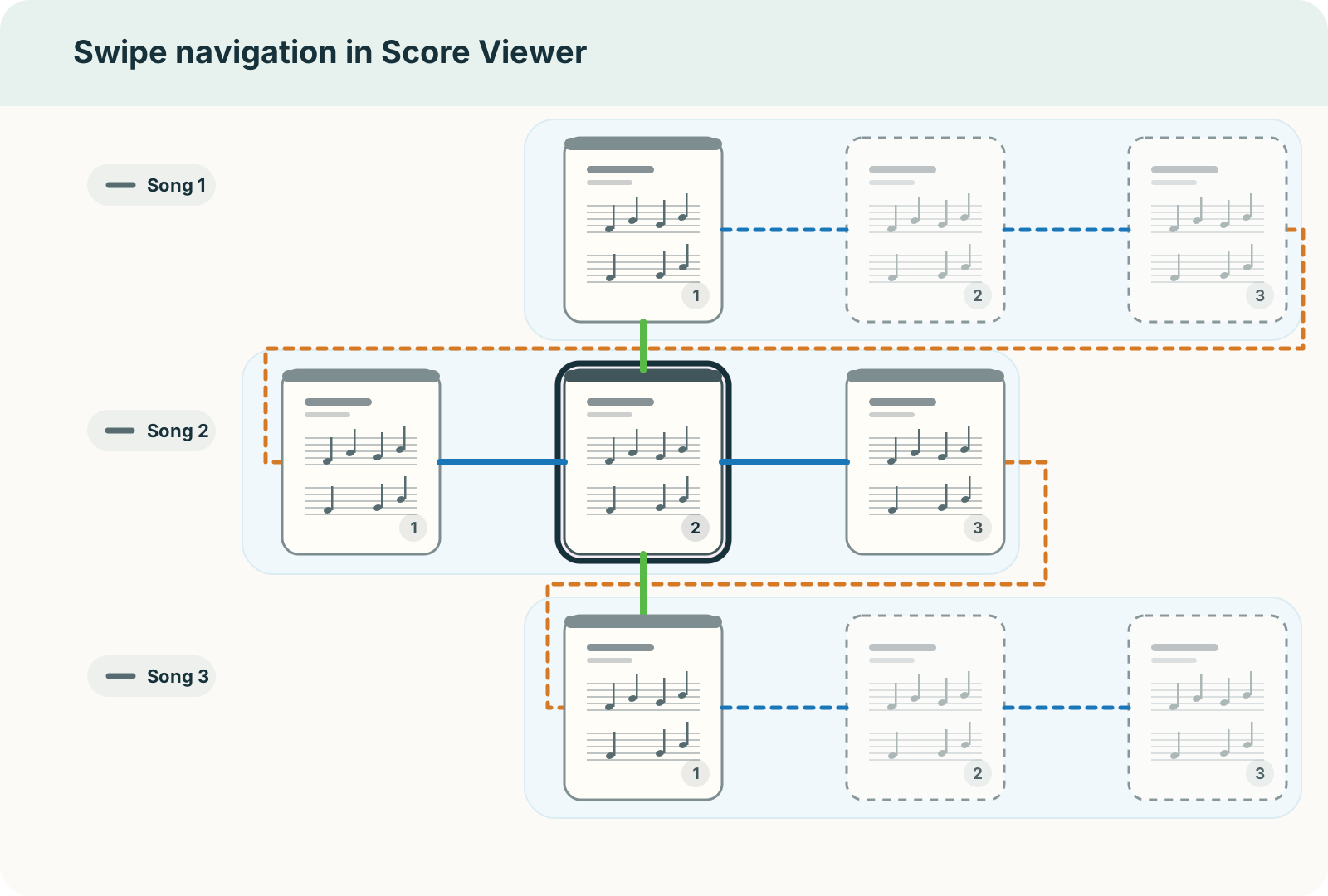
With the default horizontal page direction, sideways swipes move through pages and can continue from the last page into the next song. Up/down swipes move to the beginnings of neighbouring songs. Changing to vertical scrolling swaps these directions. Try both a page turn and a song change before rehearsal.
For hands-free turns, choose a page turner or MIDI controller. The connection route depends on the kind of device, even when both say Bluetooth.
Keep the notes you need on the score
Use annotations for fingering, a cut, or a rehearsal reminder. If the page is readable already, you can keep that view. For a change of room or lighting, the display settings let you adjust layout, zoom, and inverted colours.
Choose the view and add annotations
Lyrics or a chord chart instead of a PDF
Choose a format for the material you want to read:
| What you are preparing | Format |
|---|---|
| Plain lyrics or notes | Plain Text |
| MC or rehearsal notes with headings | Markdown |
| Lyrics with chords above the words, with chord transposition | ChordPro |
| A chord progression with measures, rhythm, and repeats | Fumen |
Start with the copyable ChordPro and Fumen examples, then replace the words or chords with your own. You can create and edit these pages in Viewer; a computer editor is optional. Fumen’s display options and optional VS Code extension are there when you need finer chart formatting.
Existing text files, MusicXML, and MEI can also be imported. For the supported formats and part selection, see Library. PDF scores cannot be transposed automatically; ChordPro and Fumen support chord transposition.
Add the next thing your playing needs
- Keep reference audio and a metronome ready for this song → Practice & Auto Page Turns
- Give the prepared song to a bandmate → Data Sharing & Devices
- A score is missing or a page behaves unexpectedly → Find help by symptom