Choose whether to add an item from outside the app, from the library, or by creating it from scratch.
Choose Where to Add From
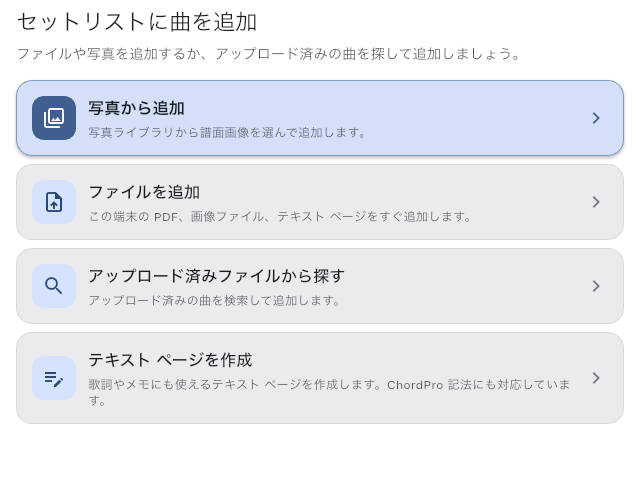
To add music for a performance, tap the add button in Setlist Detail. Choose From Files or Photos for a PDF or photo not yet in the app, or From Library for a song you prepared before. You do not have to organize Library first.
Turn a PDF or Photo into a Song
- Choose From Files or Photos.
- Choose Score File for a PDF, MusicXML, MEI, or image file, or Photo Library for images in your photos app. Photo selection availability depends on the device.
- Select what you need and continue importing. If you choose several files, including a mix of PDF, MusicXML, and MEI, check their names in Bulk Add Review. MusicXML asks you to choose the full score or a part only when there are several distinct choices. MEI creates a single-movement full score. The result appears in Scores whichever format you choose.
- Back in the setlist, tap the song and check that you can read the pages you need.
MusicXML File is an auxiliary entry for MusicXML/MEI only; use Score File to select them together with other formats. For export choices, see Choose PDF, MusicXML, or MEI in Library.
On Android, if a score in Google Drive or another app is missing, try Other Apps instead of Score File. Available apps depend on what is installed and which file types they support. See Importing in Library for the next steps when a cloud file cannot be retrieved.
Add Something You Used Before
Choose From Library, then decide how much of the earlier preparation to reuse.
- Song: Add a prepared song as it is. Change its page range, audio, or automatic page turns later and every other setlist using that song changes too.
- Score: Build a new song from a score you already have, annotations included. Audio and automatic page turns are set up separately for the new song.
- MusicXML: Create a score from saved MusicXML/MEI source files. MusicXML offers a full score or parts; MEI creates a full score. To reuse an already created score, choose Score above.
| Choice | What is added | Effect of later changes |
|---|---|---|
| Song | Prepared page range, audio, automatic page turns, and other settings | Changing these also affects other setlists using the same song |
| Score | A new song using the same score and annotations | The new song's audio and page turns are independent; annotations remain shared |
| MusicXML | A newly created score and song from the saved source file | Prepare a new full score or part selected for this use |
Choose Song to repeat the earlier show's setup, or Score to prepare different audio or page turns for this performance. Duplicating a song is another option. To separate annotations too, duplicate the score itself. See Choose Existing Song Or Score for finding and selecting them.
Create a Score from MusicXML or MEI
Choose a new file from From Files or Photos → Score File. To create from a saved source file, choose From Library → MusicXML. Choose a full score or part for MusicXML; MEI creates a full score. Check the score preview before confirming.
Readable song length, opening tempo and meter, changes within the song, page turns, and repeat destinations are set automatically for the new song. There is no extra settings confirmation screen. After adding, check length and opening BPM and meter under Timeline Settings in Item Settings, and changes and destinations in the cue list. Tempo-only and meter-only cues do not turn pages.
A completion notice names anything that could not be read. Check and adjust the settings you need. These automatic settings are not timed against a recording. If you use audio, play it and check the timing. The same initialization is used when making a new song from a MusicXML-derived Score. Reusing a prepared Song keeps its current settings and does not repeat initialization. Explicit song length or length linked to audio is not overwritten by estimates. See Library for display limits and when a PDF is a better choice.
Create Lyrics or a Running-Order Memo
Choose Create New, then:
- Text Page: For lyrics, chords, or a short running sheet you want to open as a score. Choose Plain Text, ChordPro, Markdown, or Fumen, then edit the content.
- Memo: For an MC note, break, or instrument change between songs. It does not open as a score and cannot have audio, automatic page turns, or a Conductor song number. See Setlist Memos.
If Adding Stops Partway Through
If a batch shows a failure list, successfully added songs stay, and you can retry just the failures. Check what is already in the setlist before importing everything again. If you cancel score creation after saving MusicXML/MEI, its source file may remain in Manage Source Files. To resume, find it under From Library → MusicXML. If a notice says the save result could not be confirmed, check Library before adding again.