Add short non-song cues, such as MC notes, breaks, instrument changes, or stage transitions, directly into the setlist order.
Setlist Memos
Put reminders such as "MC next" or "Change guitar" between songs in the running order. Actions with no score can then stay in the same list as the music. For lyrics or a long script you want to read in the score viewer, use a Text Page instead.
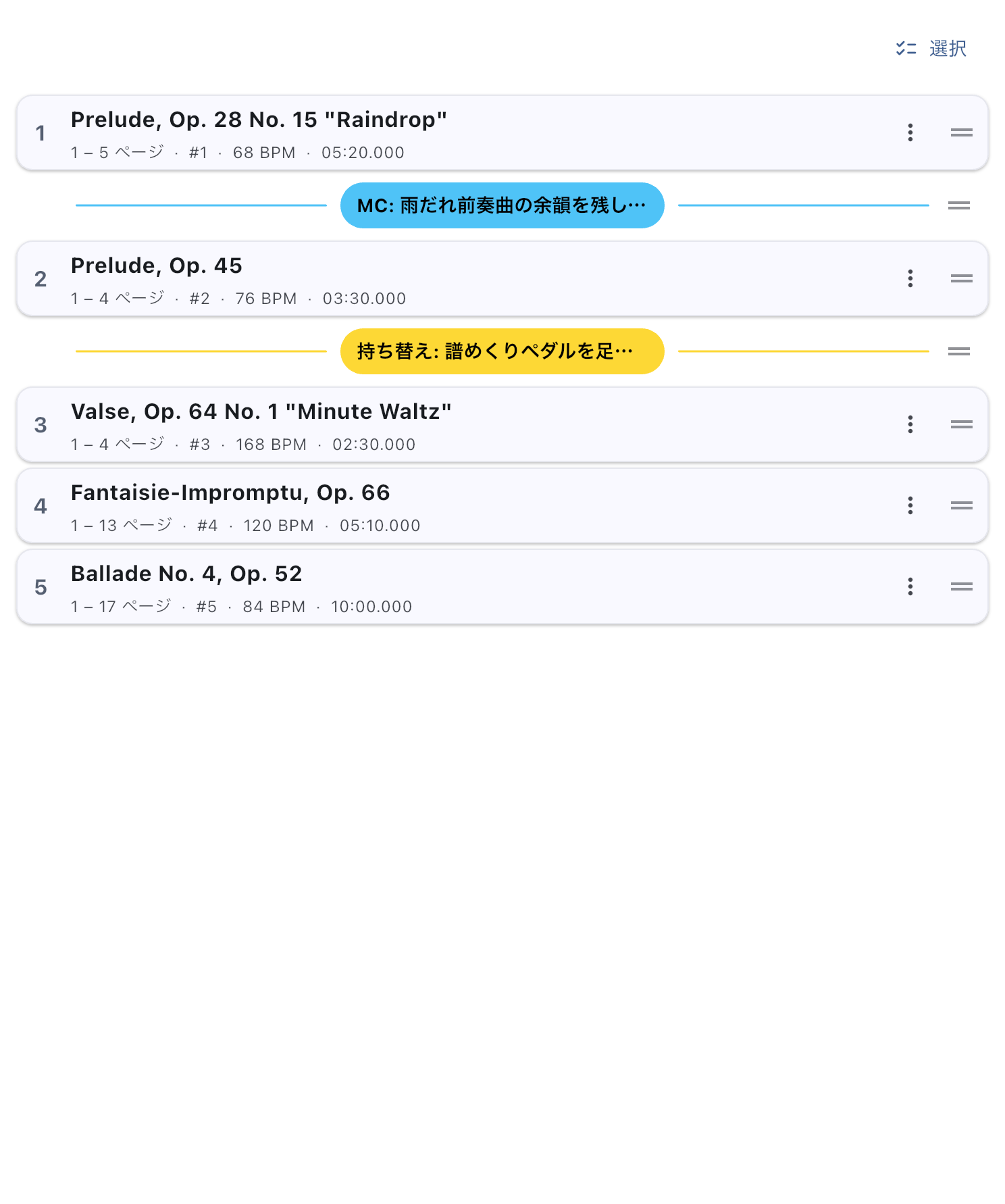
Put an Instrument-Change Reminder Before a Song
- From the add button in Setlist Detail, choose Create New → Memo and enter a short label.
- Drag the memo from the end of the setlist to just before the song that needs the change.
- Check the sequence: previous song → memo → next song.
Keep labels brief enough to read at a glance: "MC 2 min," "Change guitar," or "House lights." Memos can go before the first song, between songs, or after the last song. Several can appear together. A memo is not a song. It has no score, audio, tags, duration, or Conductor song number, and does not count towards song-only order or numbering.
Change Its Label or Color, or Remove It
Tap the memo label to edit its text and choose a color from the presets. Use colors only if they help. Giving MC notes and instrument changes different colors can make them easier to spot in a long setlist.
Swipe either way to remove that memo row from the setlist. Scores and audio are unaffected. Add the memo again if you need it later.
The Small Reminder in the Score Viewer
When a memo follows the current song, a next-memo cue may appear near the bottom of the score viewer. It helps you remember what to do before moving to the next song. In page view it appears when the song's end is visible; in continuous scrolling it appears while that song is open. Consecutive memos sit side by side as space allows.
Tap the cue to hide it temporarily if it is in the way. The original memo remains available in the setlist and search. Reopening the score viewer, for example, can show the cue again. To stop showing these cues in future, turn off the next-memo cue in Global Settings. This setting is saved, but it does not remove memo rows from setlists.
Search and Sharing
You can find a memo's label in Global Search. Tapping the result opens the setlist containing it. A memo cannot open as a score by itself. Sharing a whole setlist includes its memos. When sharing only selected songs, only memos immediately before or after those songs remain. See Send a Setlist.
If a Memo Does Not Appear
First check in Setlist Detail that it follows the intended song. If the small cue is missing from the score viewer, check whether the song's end is visible in page view and whether the next-memo cue is enabled in Global Settings. Hiding the small cue and removing the memo row are separate actions.