Review and confirm song titles before adding multiple files to your setlist all at once.
Bulk Add Review
When adding several scores or photos, you can change the song titles to names you will recognize during a show. If the original filenames are clear enough, keep them. You can rename the songs afterwards too. This screen opens when you choose several files or photos under From Files or Photos in Choose Where to Add From.
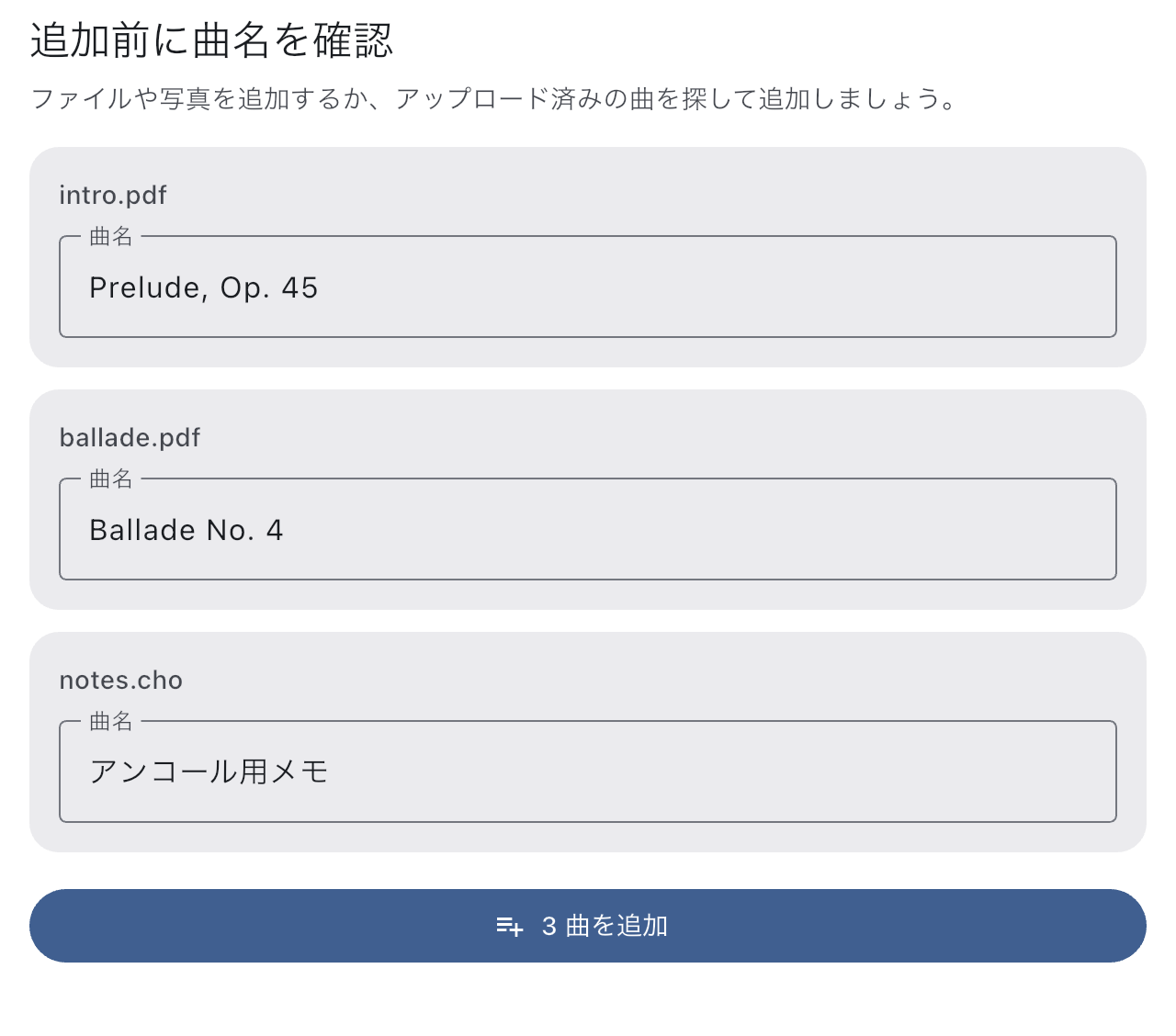
Check the Names and Add the Songs
- Use the original filenames to check which songs you are adding.
- Tap Song title only for names you want to change. For example, if "Encore" is easier to recognize than "scan003," use that name.
- Check the number of songs on the add button and confirm. The songs appear in the setlist after import.
- Arrange the order in Setlist Detail, then tap the songs to check that the scores you need open.
You do not need to finish the running order here. Song names can also be changed from their menus after adding.
The same review handles mixed PDF, MusicXML, and MEI selections. Its confirmed title names both a new song and a new score. Subsequent part selection does not ask for another name. Reusing an existing score keeps that score’s name.
When to Use It
If Only Some Files Were Added
Successfully added songs remain. If a failure list appears, you can retry just the failed files. Check which songs were added before selecting everything again. If a source file will not open, obtain a working PDF or image before returning to Choose Where to Add From.
If the score is already in Library, choose whether to reuse a prepared song, make a separate song using the same score, or import an independent score copy. See Choose Existing Song Or Score for the differences.