Choose what to include for a single song — score, audio, timeline, annotations — and share it via QR code or archive file.
Send a Song
Use this to give a bandmate one song or move a prepared song, backing track, and page turns to your other device. Choose Share Song from the song's menu in Setlist Detail. The recipient imports it with PagePilot Viewer too. To give someone without the app a readable PDF, use Export as PDF in Library.
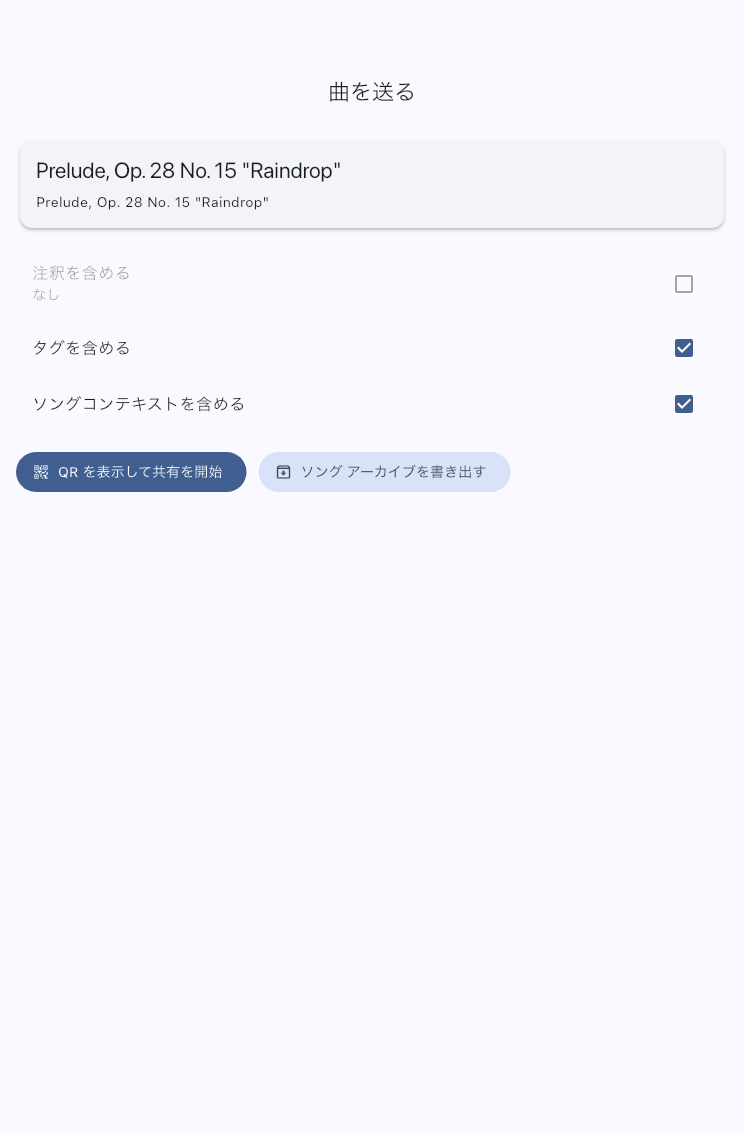
Choose a Score Only or the Performance Setup Too
Use the checkboxes to choose what to send. Before sending, decide whether personal annotations and tags belong in the share.
| What the recipient needs to do | Include |
|---|---|
| Read the score and prepare their own setup | Score. Audio, timeline, song settings, and display overrides may be left out |
| Review your fingerings or cuts | Annotations |
| Use the same backing track or automatic page turns | Audio and timeline. Include song settings too for the same page range and opening tempo |
| Add it to a setlist with the same page range and tempo | Include settings for this song in the setlist |
| Reproduce your custom zoom or display pattern | Song settings and Include display override |
| Find it using the same show-name labels | Tags |
Leave display overrides out if the recipient should use their own device's display settings. Leave tags out if they are only for your own organization.
A timeline includes tempo and meter changes as well as page turns. Include it if you want to send cues that change musical settings without moving the score. The recipient can still leave out audio and other content before importing.
What Sending Song Settings Allows
The title, page range, tempo, meter, audio start position, Conductor song number, and related settings let the recipient choose Add song to a setlist in their preview. They choose a destination and add the song with that preparation. If they only need scores or other files in Library, you can leave the song settings out. Display overrides travel with the song settings, so leaving out those settings turns display overrides off too.
Share by QR When You Are Together
- Connect both devices to the same Wi-Fi network.
- Choose the content and tap Show QR and start sharing.
- Ask the recipient to open Receive Shared Data from the top menu and scan the QR.
- After receiving, they review the contents and import their selection. Sending alone does not finish their performance preparation.
Keep the QR available while they receive. A QR from an ended session cannot be used; use the file method below for a later handoff.
Send a File for Later
Use Export Song Archive to make a .ppva share file and send it using AirDrop, messages, cloud storage, or another method. The recipient opens it from Archive in Receive Shared Data.
This shares the selected song. It differs from a full app backup (.ppbk), which restores the whole app and replaces current data.
What the Recipient Should Check
After import, ask them to open the song they added to their setlist and check its page range, backing track, page turns, and important annotations. What you included and what they chose to import may differ.
Current .ppva sharing does not send Voice Count's enabled state, A/B/C bar selections, or voice type, even with song settings or a timeline included. On receipt it is off, bar selections are blank, and the voice returns to its default. Set it again in Item Settings if needed.
If Sharing Does Not Work
- QR connection fails: Check that both devices use the same Wi-Fi, that the app has Local Network permission, and that the sender is still waiting. If the session ended, restart sharing and scan the new QR.
- The venue's Wi-Fi prevents connection: Switch to an archive file. The recipient reviews its contents after receiving it.
- Audio, page turns, or display differ: Check both what the sender included and what the recipient deselected. To reproduce display overrides, send song settings and display overrides; the recipient must enable Add song to a setlist and the display overrides.
To send running order and MC memos too, see Send a Setlist. For the recipient's steps, see Receive Shared Data.