Receive scores and setlists from another device via QR code or archive file, choose what to import, and save.
Receive Shared Data
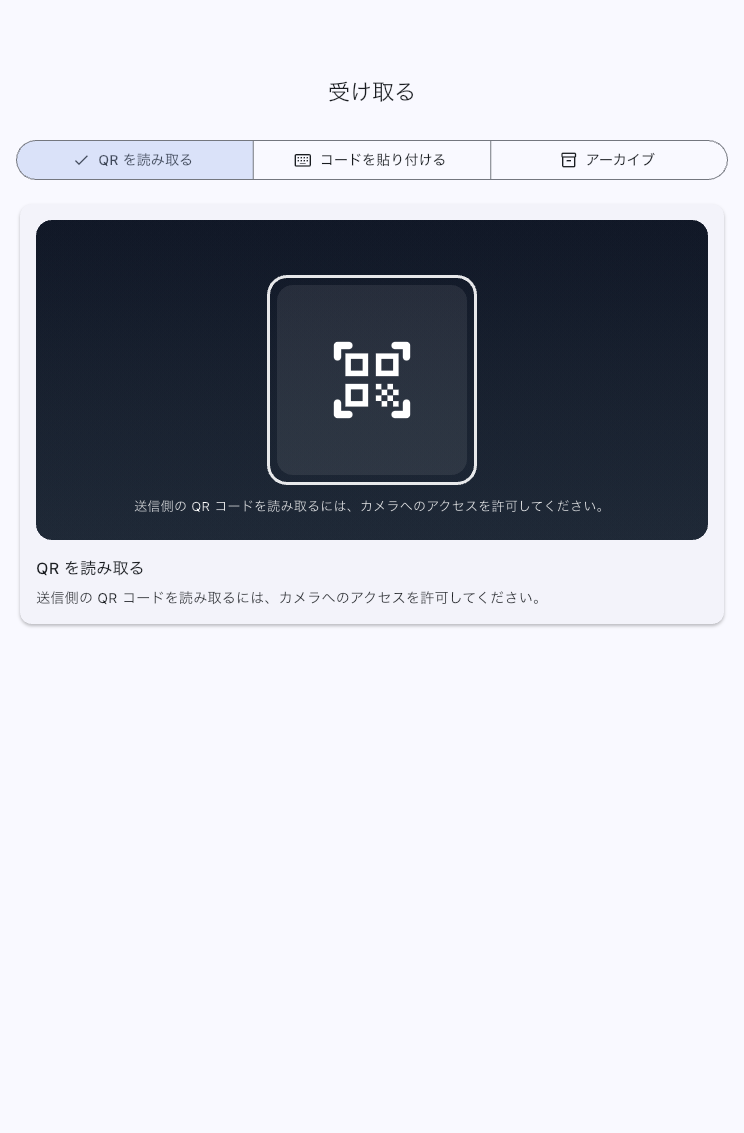
Import a bandmate's scores or setlist onto your device. Open Receive Shared Data from the menu at the top. Whether it arrives by QR or a .ppva share file, you can choose the contents before importing.
Receive the setlist if you need its running order too, or select just the scores you need.
Open a QR Share or File
When the Sender Is Nearby
- Connect both devices to the same Wi-Fi network and ask the sender to show the sharing QR.
- Scan it on the receive screen. A content preview opens after the transfer finishes.
- Choose what you will use, as described below.
A QR stops working when the sender ends the session. Ask them to start sharing again and scan the new code.
When You Received a File
Under Archive, tap Choose archive and open the .ppva you received. Choose and import its contents just as with QR. Once you have the file, you do not need to be on the sender's Wi-Fi network.
A .ppbk is not a share file. It is a full app backup; restoring it replaces current data. Use .ppva to add songs or setlists. For moving the whole app to another device, see Backup and Restore.
Choose What to Import
Review the songs and scores in the preview and keep what you need. Deselecting unwanted content can save tidying afterwards.
| What you need | What to choose |
|---|---|
| Only a score to read | Keep the score and leave out unwanted audio, timeline, annotations, tags, and display overrides |
| The sender's fingerings or cuts | Include annotations |
| The same backing track | Include audio |
| Automatic page turns or tempo and meter changes | Include the timeline; it also carries cues that do not move the score |
| The sender's show-name labels and filing | Include tags |
| Their custom zoom or display pattern | Include display overrides. A single-song share also needs setlist addition, as below |
Leave tags or display overrides out if you do not need the sender's filing or display choices.
Leaving out a score also leaves out its annotations and tags. Audio tags require audio; timeline tags require the timeline. If deselecting something makes another choice unavailable, follow the preview's guidance and revise the selection. Even for a MusicXML-derived song, sharing does not automatically recreate a timeline you left out. Keep it if you need the sender's tempo or meter changes.
Add One Received Song to a Setlist
If the sender included song settings, you can select Add song to a setlist. Enable it to use the sender's page range, tempo, meter, audio start position, and related settings. Use Setlist to add to to choose an existing setlist or make a new one. To use its display overrides too, enable both setlist addition and display overrides. If you only need the score or other files in Library, setlist addition may stay off.
Receive a Setlist
A setlist share can carry its running order, each song's page range and playback preparation, and memos. Leave unwanted songs out before importing. When importing only some songs, only memos immediately before or after selected songs remain. Check that your selection keeps needed MC and instrument-change reminders.
When a Score or Audio Already Exists
If matching content is found in Library during import, choose Use Existing or Import New Copy. You are asked each time a match is found. Choose Use Existing to avoid another copy of the same PDF or audio, or Import New Copy to manage the received copy separately.
Confirm and Check It for Performance
Tap Import selected data; progress is shown. If you created a setlist or added a song to one, Open imported setlist appears when complete. Otherwise, check the content in Library. Open the imported song and check the needed pages, annotations, audio, and page turns.
Current song and setlist .ppva sharing does not transfer Voice Count's enabled state, A/B/C bar selections, or voice type. Even with song settings or timelines imported, it is off, bar selections are blank, and the voice returns to its default. Configure it again in Item Settings if needed.
If Connection or Import Fails
- Cannot connect to the sender: Check the same Wi-Fi network, that neither device switched to mobile data, and that the sender is still showing the QR. Check the app's Local Network permission too.
- Old QR or unavailable share: Ask the sender to restart sharing and scan the new QR.
- The venue's Wi-Fi blocks connection: Device-to-device traffic may be disabled. If the router settings cannot be changed now, ask for an exported
.ppvaand open it under Archive. - Import will not proceed: Check that needed songs and a destination are selected, and follow any missing-selection guidance in the preview.
- Display differs despite including it: For a single-song share, check that both Add song to a setlist and display overrides were selected.
- An import stopped partway: If you did not see completion, check Library and the destination setlist before repeating the same import. Follow the reason shown on screen.
See Send a Song or Send a Setlist for the sender's steps.