Fine-tune fonts, margins, and the ChordPro layout preset for text pages.
Text Page Settings
Adjust text size, line spacing, and margins when lyrics or chords are hard to read from your music stand. If the current layout is readable, you do not need to change it.
These values are the defaults for text pages throughout the app. To change only one song's appearance in this setlist, first use the display options in Item Settings. Values specified there take priority for that song. This screen does not edit the lyrics or chords themselves. Fumen uses its own fixed layout; these font and margin adjustments do not apply to it.
Open Advanced Display Settings in Global Settings.
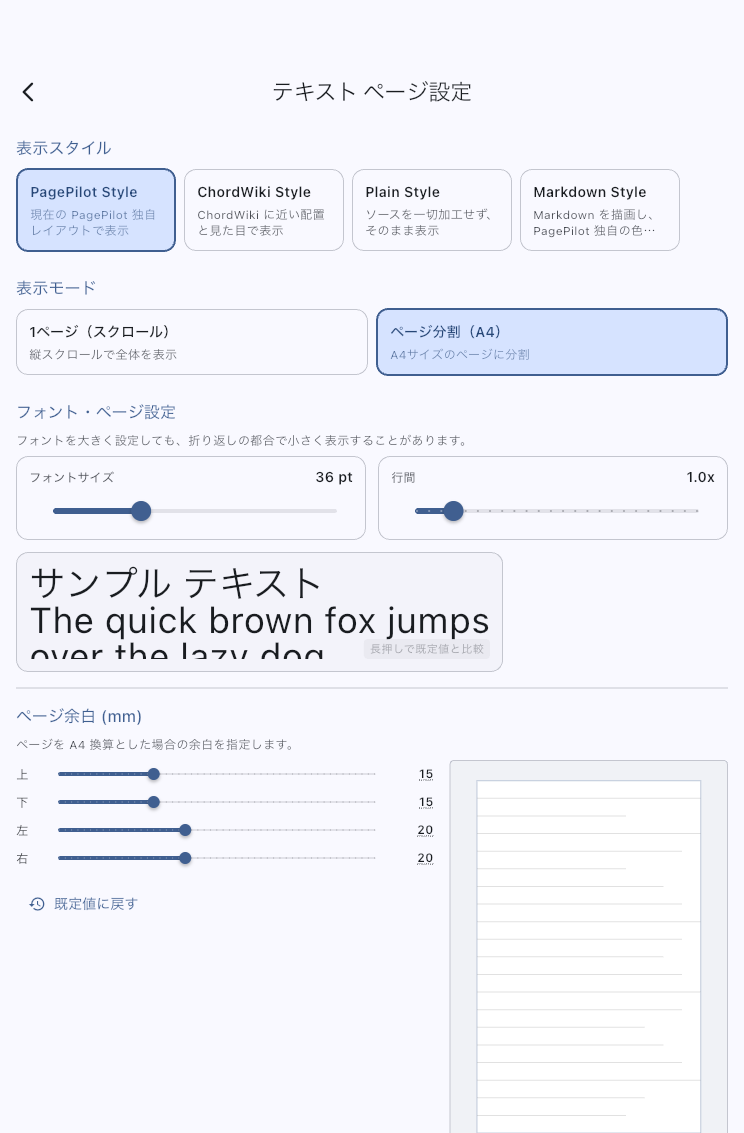
Start with Readable Text
- Note the current values, then change the font size a little under Font & Page Settings.
- Check the preview. Increase line spacing if the lines look crowded. Hold the preview to compare with the defaults.
- Open a song you use and check it from your usual music-stand distance. Check that lyrics and chords are readable and that line breaks and page turns fit the song.
Display changes can alter line breaks and page boundaries even though the text is unchanged. For automatic page turns, also check that cues still take you to the passage you need. If the result is worse, restore the values you noted.
ChordPro Layout
Choose how ChordPro lyrics and chords are arranged. PagePilot uses PagePilot's arrangement; ChordWiki uses an arrangement closer to ChordWiki. Choose the one closer to the charts you usually read, then check how chords line up with lyrics in a real song. The choice is saved as the app-wide default.
A choice made in ChordPro Layout Preset from the score viewer also changes the app-wide default. It is not temporary. If a song has its own display setting, that value takes priority.
To change the format to Plain Text, Markdown, or another format, use Text Editor.
Font & Page Settings
Increase font size if the text is too small. Increase line spacing if it is hard to follow the chord and lyric lines. Larger text leaves less on one screen, so check a real song as well as the preview.
A large font size may be displayed smaller to fit line wrapping. Open the song to check how the lines you need wrap.
Page Margins
Adjust the top, bottom, left, and right margins in millimeters. Widen them if text is crowded against the edges; narrow them slightly if wide margins cause too many page turns. The text and audio remain unchanged, but the visible lines and page boundaries may change.
Select Reset to Default to restore the initial margins. To restore your own earlier adjustment, enter the values you noted.
If One Song Does Not Change
Check for individual display options in Item Settings. Clear the individual setting for any option where you want the app-wide default. This is also where you choose Continuous Scroll for a text page.