A screen for adding or removing the same tag across multiple items at once.
Bulk Tag Editor
Give several items the same useful label, such as a show name or "in rehearsal." Later, you can find them by the event or instrumentation even if you forget a title. If names already let you find what you need, you do not have to organize tags before playing.
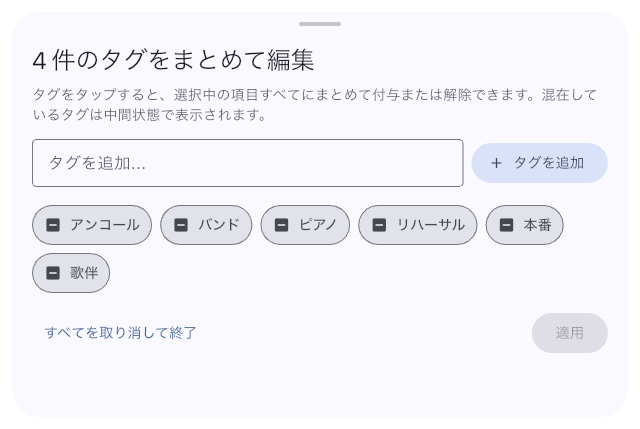
Apply One Tag to the Items You Selected
- Select several items in Setlist List or Library, then open tag editing. Check that only the items you want to organize are selected.
- Tap an existing tag until it is selected for every item. If the tag does not exist, enter a new one and add it.
- Check the addition and removal counts, then tap Apply. The selected items receive the changes.
For example, tagging three rehearsal setlists with the same show name lets you find them together next time. Look for an existing tag first so you do not create several nearly identical labels.
Read the Tag States
- A checked tag will be on every selected item.
- An unchecked tag will be removed from the selected items.
- A mixed state means only some items have the tag. Leave it unchanged to keep its original distribution.
Tapping a mixed tag first selects removal from every item. Tapping again selects addition to every item; a third tap returns it to its original mixed state. Use the change counts to check that you have chosen the result you want.
If You Make a Mistake
Before tapping Apply, use Discard all and close to cancel this round of changes. There is no single undo after applying. Correct the affected items' tags in Library or Setlist List. If a tag originally belonged to only some items, removing it does not keep an automatic record of that distribution; check the items and counts before applying.