Adjust a cue's time, whether and where it moves the score, and its tempo and time signature.
Cue Details
Open this dialog to adjust a page turn or the point where tempo or meter changes. A cue records a point in the song where the display, tempo, or meter changes. Not every cue moves the score.
The cue at the very start of the timeline (time 0) is special: it sets where the song begins and its first tempo and time signature. This manual calls it the Anchor cue to keep it separate from the others. That name does not appear on screen.
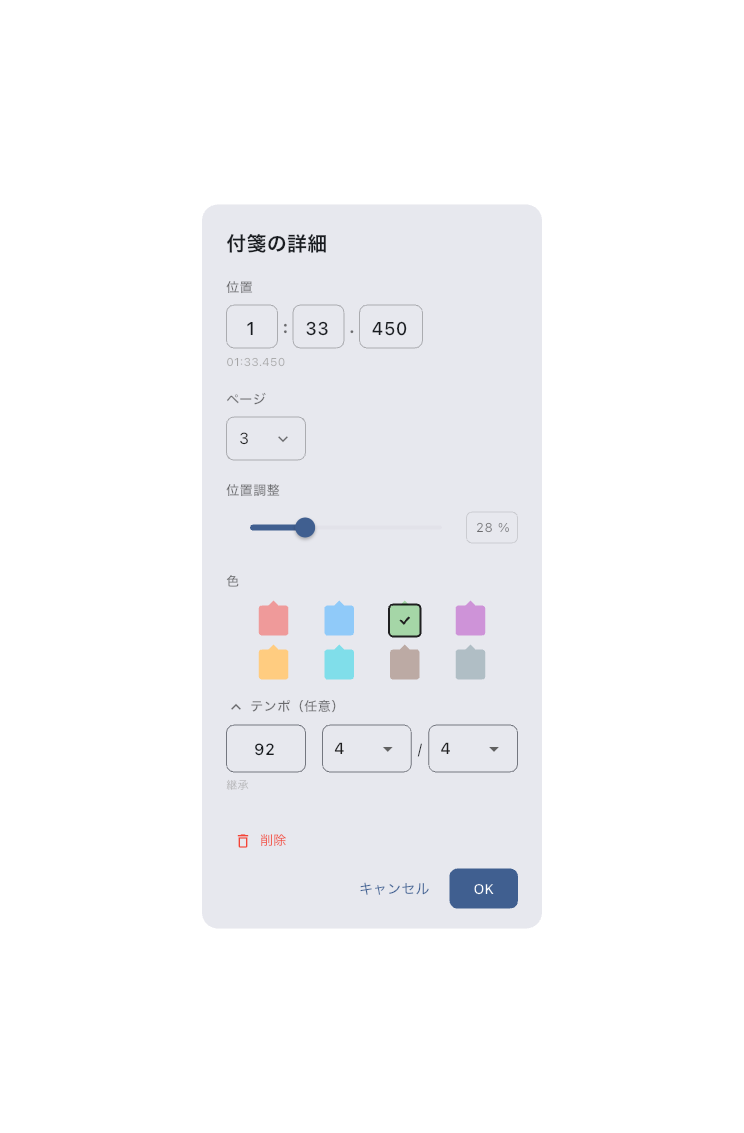
Open the Cue You Need to Fix
Open the cue menu in the Score Viewer's Timeline and choose the cue by its time or bar and destination. Cue List also lets you inspect positions and BPM. This differs from tapping a cue to move playback to that position.
Choose what to change based on the rehearsal problem:
| Problem | Change | Check |
|---|---|---|
| A page arrives too early or late | Cue time | Play from before it and check that the next bars appear before you need them |
| The wrong page appears | Page and position adjustment | At the same time, the intended page or system appears |
| Scrolling should reach the end with the music | End destination | Continuous scrolling reaches the end of the score |
| Only tempo or meter changes | BPM, meter, and Keep score position | The click changes without moving the score |
End means the end of the score in the current display, rather than a position adjustment on its last page. The opening cue cannot use End or Keep score position.
Lining Up Time and Page
For an ordinary cue that changes only tempo or meter, choose Keep score position. No page or scroll position is needed, and the cue does not affect automatic page turns or scrolling interpolation. Tempo- or meter-only changes imported from MusicXML use this setting too.
The opening cue at time 0 also sets the initial score position, so it cannot use Keep score position. Set the opening tempo and meter on that cue.
If the score is to follow the audio on its own, the cue's time and page have to line up properly here. Play from shortly before the edited cue and listen while checking that the bars appear before you need to read them. Adjust the arrival time separately from the destination page to make the change easier to assess.
When changing the meter during a song, align the cue with the beat you want to start the new bar. With the metronome enabled, turn on Snap to Beat in Timeline Settings to align cue additions and drags to the nearest beat. If you edit the time directly, check that the cue still lands on a beat.
If a meter-change cue falls between beats, the display starts a new bar at that time, but no click is added at the change. The strong first-beat click may therefore be absent in that bar. The regular beat clicks continue. If you need a downbeat at the change, align the cue with a beat and play through the transition to check it.
Dragging a position or BPM value cell up or down in the cue list updates the timeline behind the dialog straight away, before you close it. Confirming records one undo step; cancelling puts the original values back.
What the Anchor Cue Is For
The Anchor cue is pinned to time 0 and sets where the song begins along with its first tempo and time signature. Fill in the tempo and time signature here and the metronome and Conductor integration can use them as their reference.
If You Get Stuck
- If dragging a value cell does not change anything on the timeline, check that the dialog is fully in front. The live update only works while you are dragging.
- If you cannot find the Anchor cue, look at the very start of the timeline, around time 0.
- Cue colors cannot be chosen. They follow the cue's mode (Top, Time, Bar / Beat).
- A change reverted — Cancelling restores the original value. If it reverts after you confirm and reopen the same cue, do not assume the setting was saved. Note the song, cue position, changed values, and how you closed the dialog, then use the contact form.
Related Screens
- For everything you do on stage, including cues, see Score Viewer.
- To set up the audio and automatic page turns a song uses, open Item Settings.