See every page of every song in the setlist as thumbnails, and jump straight to the one you want.
Page Overview
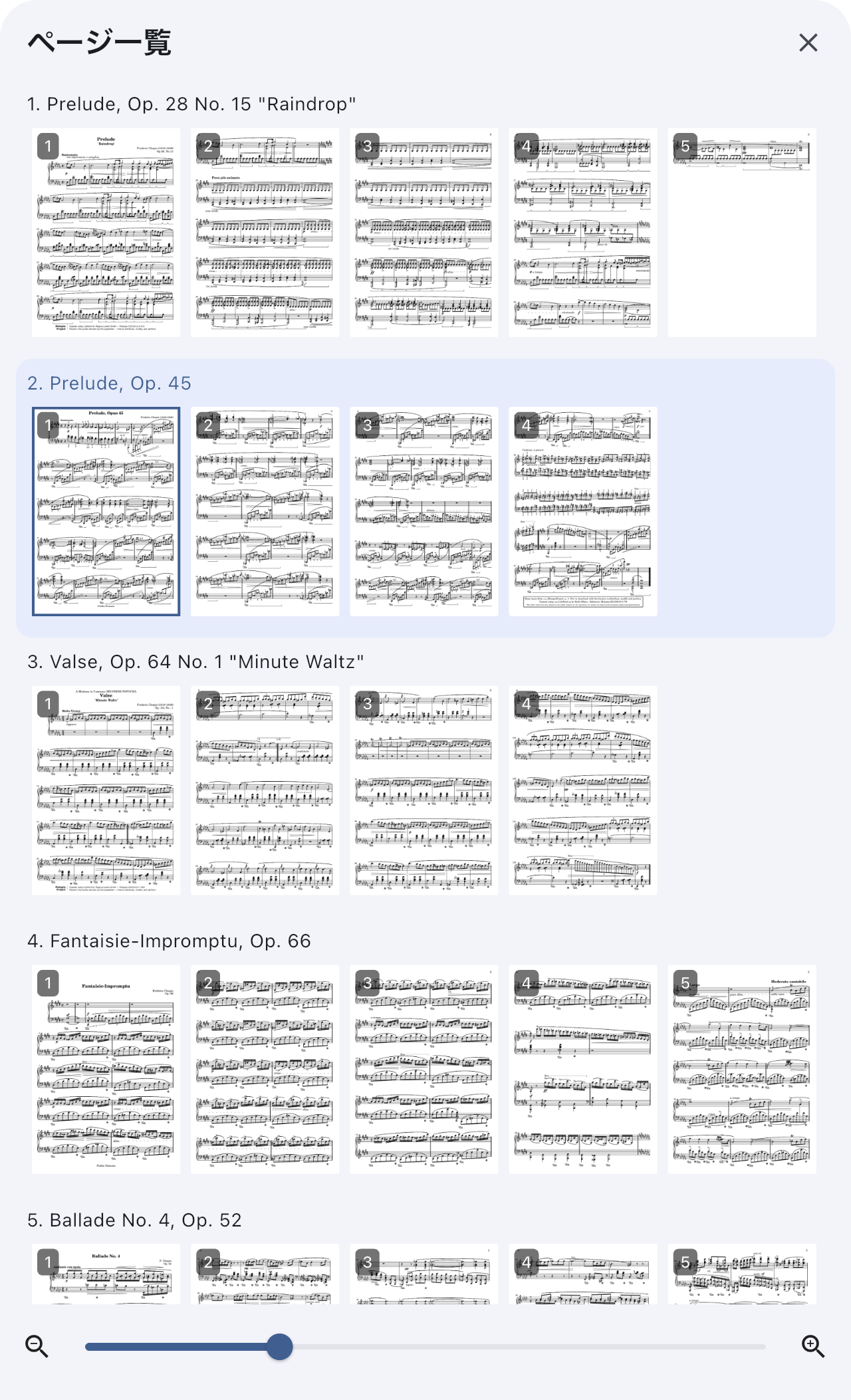
Page Overview shows every page of every song in the setlist as a thumbnail, so you can jump straight to the page you want. Use it for "start from page 3 of the next song" or "go back to the spread I was just on" — you can see the song and the page before you commit.
Opening It
Tap the button at the right end of the Timeline at the bottom of the Score Viewer. It shows a grid icon and the current page, such as 5 / 20.
If the Timeline is not visible, set Timeline display to Always in the Score Viewer Display Menu. When needed may leave the controls hidden depending on whether you use audio or automatic page turns.
Find the Song and Recognize the Page
Look for a heading such as “1. Song title”. Songs appear in setlist order, so check the title before returning to another song. When you opened directly from the library, only that song appears.
Below each title, pages run from left to right. Swipe along that row to find later pages in a long song. Even when you read two pages at once, the overview shows single pages. Landscape pages fit inside portrait frames with space above and below.
The page you are reading opens near the center of the overview. If you have forgotten its number, use features such as long rests or the number of systems to recognize it.
Seeing Where You Are
- The row holding the page you are reading gets a light background tint.
- The tile for the page you are reading gets an outline. When you read two pages at a time, both visible pages get one.
- When an automatic page turn moves you along, the outline and the tint follow. The scroll position does not. It stays where it opened, so you can keep your place with your eyes.
Jumping to a Page
Tap a tile to show that page and close Page Overview.
- Jumping within the same song does not stop playback. In two-page display, you get the spread that contains the page you tapped — tap page 4 in 2 in 1 and you get pages 3-4.
- Jumping to another song behaves exactly as choosing that song does, playback included.
To close without choosing anything, use the close button at the top right, a tap outside the overview, a downward drag, the Android back gesture, or Esc on an external keyboard. Nothing changes — not the page you are on, not playback.
Changing the Size
The slider at the bottom sets tile size, from 5% to 40% of the screen's shorter side. At 5% you can take in more of the set at once. A two-finger pinch on the overview changes the same value.
- Only the thumbnail lanes resize. Song titles stay the same size.
- While your fingers are moving, the app stretches the images it already has. When you let go, it rebuilds them at that size. The brief coarse look is the price of a smooth gesture.
- Zoom out to see the set order; zoom in to recognize notes or systems. The initial default is 15%.
- The size you settle on is remembered on this device and used the next time you open Page Overview.
The Page Number Badge
The top-left corner of each tile shows the page number counted from 1 within that song. The 5 / 20 in the Score Viewer is the position inside the score file itself (the page number and that file's total pages), so the two are counted differently.
When part of one file is registered as a song, the two numbers do not match for the same page. For example, if pages 5 to 7 of a 20-page score file are registered as one song, the first tile of that song shows 1, while the Score Viewer shows 5 / 20 for the same page.
Use the number menu at the bottom-right of Page Overview to choose None, Small, Medium, or Large. The badges update without closing the overview, so you can judge them against the thumbnails. The same setting remains available under Page overview in Global Settings → Score Display Settings. The three visible sizes change only the badge text — not song titles, not tile size.
Hiding the badge loses no information. Every tile still carries its song title and page number for screen readers.
Text Pages and ChordPro Songs
Text pages and ChordPro songs cannot be reduced to a thumbnail, so their tiles are placeholders with an icon and a page number. The row is always there, and tapping to jump works the same way.
If Something Goes Wrong
- "Could not load page overview" — choose Retry. The close button at the top right keeps working while the error is showing.
- A brief loading indicator right after opening — the app is reading the size you last used. If that read is slow, it shows the overview at the default 15% and uses the stored value from the next time you open it.
- The page arrows in the Timeline are gone — the page-stepping buttons were replaced by Page Overview. Step one page at a time with a swipe, the edge tap zones, or the arrow keys on an external keyboard or page turner. The menu that listed page numbers alone was replaced by Page Overview too.
- Setlist memos do not appear — Page Overview exists to move you to a page, so between-song memos are not listed. See Setlist Detail for those.
Related Screens
- For the Score Viewer as a whole, see Score Viewer.
- To turn the Timeline on or off, see Score Viewer Display Menu.
- Badge display can be changed directly at the bottom of Page Overview; the same setting also lives under Score Display Settings in Global Settings.