Search for external MIDI devices and connect or disconnect them.
MIDI Device Picker
Connect a MIDI device to check notes on an external keyboard or turn pages with a pedal while keeping your hands on your instrument. You can use multiple USB and Bluetooth MIDI devices. After connecting, the input channel determines whether they play sound or control the score.
A page-turn remote that sends arrow keys connects through your tablet's Bluetooth settings. It works differently from a MIDI pedal connected here. See “Using a Page Turner” in Score Viewer.
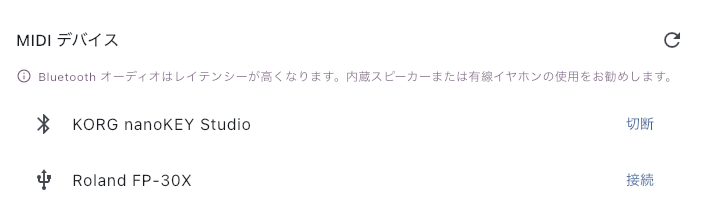
Connect and Check the Response
Open this from Global Settings → Advanced settings → MIDI devices, or from the control bar of the Piano Keyboard. When a MIDI device is connected, you can also use the MIDI connection icon in the Score Viewer's top bar.
- Plug a USB device into the tablet. For Bluetooth MIDI (BLE-MIDI), turn the device on and make it available for connection. Allow PagePilot to use Bluetooth the first time.
- Select the device in the list and connect. Wait for connection processing to finish and check that it is shown as connected. If it has already connected automatically, continue to Receive check.
- In MIDI devices → Receive check, play a key or press the pedal and read the sending channel. Match it in MIDI input channels to Sound (default 1) or Score control (default 2).
- For a keyboard, check that it produces the same sound as the onscreen keys. For a pedal, check that it moves to the intended page. See “Using a MIDI External Controller” in Score Viewer for pedal assignments.
A connection indicator does not mean the input channel is correct for the intended use. Check the sending channel before disconnecting your other devices.
Automatic Connection Next Time and Disconnecting
Bluetooth remembers a device after you successfully connect it manually here. It tries to find and connect to that device for a limited period next time. Finding it is not guaranteed; check the connection and response before playing.
Recognized physical USB devices attempt automatic connection unless their name is excluded. Physical USB classification is unverified on iPhone and iPad, so connect manually from this sheet rather than relying on automatic connection there.
- Disconnect now — Choose Disconnect. USB will not reconnect automatically until unplugged and plugged back in. Bluetooth waits until a successful manual connection or an app restart.
- Stop future automatic connection — Choose Exclude from automatic connection. The current connection stays active. You can also manage this in Global Settings → MIDI devices → Do not auto-connect. An excluded device can still be connected manually.
If You Cannot Find or Use the Device
- A Bluetooth device is missing — Check the device's power and the tablet's Bluetooth, then search again. Pairing in the tablet settings may not replace a scan in the app. If you denied access, allow PagePilot to use Bluetooth in the tablet settings, then search again. This connection requires a standard BLE-MIDI device.
- Listed but unable to connect — Check whether another tablet or app is using it. An existing connection can prevent a BLE-MIDI device from being found or connected.
- A USB device is missing or disconnected — Check power and the cable, then connect manually when it appears in the list. Unplugging and plugging in a manually disconnected USB device also allows automatic connection again.
- Connected but unresponsive — Read its channel in Receive check and match Sound or Score control. Inputs matching neither channel are ignored. Check keyboard volume and output in Mixer Settings.
- Keyboard notes are late — BLE-MIDI receives performance information; Bluetooth audio carries the sound out. Try the built-in speaker or wired headphones to see whether the delay improves.
To prevent an unused device from connecting next time, use Do not auto-connect instead of repeatedly disconnecting it.